How to Update Your Car’s Software Safely
A safe OTA update starts before you tap Install.
Over-the-air, or OTA, updates let compatible cars receive new software through Wi-Fi or a built-in cellular connection. These updates can fix bugs, improve security, enhance vehicle features, and, in some cases, complete a safety recall without a dealer visit.
The process is usually simple, but a car is not a phone. Some updates temporarily stop you from driving, charging, using remote controls, digital keys, or other vehicle functions. The safest method is to prepare the car first and leave it alone until the installation is finished.
Before You Update
1. Make sure the update is genuine
Start the update only through your car’s built-in software-update menu or the manufacturer’s official app.
Do not install vehicle firmware from an email link, text message, forum, unofficial website, or unknown USB drive. NHTSA recommends secure update systems that authenticate software and prevent unauthorized firmware from being installed.
Read the release notes before installing. They may explain changes to driver-assistance systems, charging, infotainment, controls, or other features. Also check how long the installation is expected to take. Some updates take only minutes, while others can keep the vehicle unavailable much longer.
If the update is identified as a safety or security fix, install it promptly rather than ignoring it.
2. Prepare the car
Choose a time when you will not need the vehicle. Overnight works well, but give yourself extra time instead of scheduling an update right before work, an airport trip, or a long drive.
Before starting:
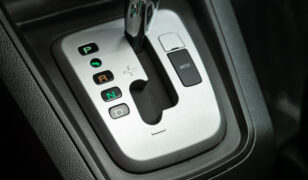
- Park in a safe place and put the vehicle in Park.
- Make sure the battery has enough charge.
- Use a strong, trusted Wi-Fi connection if your vehicle requires or recommends Wi-Fi.
- Remove everyone from the vehicle, including children and pets.
- Close the doors, hood, and trunk or tailgate if instructed.
- Keep the physical key, key card, or smart key available if your car has one.
Exact requirements vary. For example, BMW checks conditions such as battery charge, parking brake status, headlights, and vehicle position. Ford, Mercedes-Benz, Hyundai, Kia, and Rivian also have vehicle-specific conditions that must be satisfied before some installations can begin.
For an EV, it is better to have sufficient charge before starting instead of assuming it can keep charging during installation. Tesla pauses charging during an update, Kia says charging is unavailable during its OTA installation process, and Rivian requires a minimum battery level.
Install the OTA Update
3. Let the update download first
Downloading and installing aren’t always the same.
Some vehicles can download software while you’re driving or using them normally. Installation is different. It may require the vehicle to remain parked and can make the car completely unavailable.
Tesla, for example, lets you drive during much of the download phase but not while the software is installing. Rivian also states that the vehicle is inoperable during installation.
If your car offers Wi-Fi, use a stable, password-protected home network when practical. Some vehicles can also receive updates through their built-in cellular connection.
4. Start the installation and leave the car alone
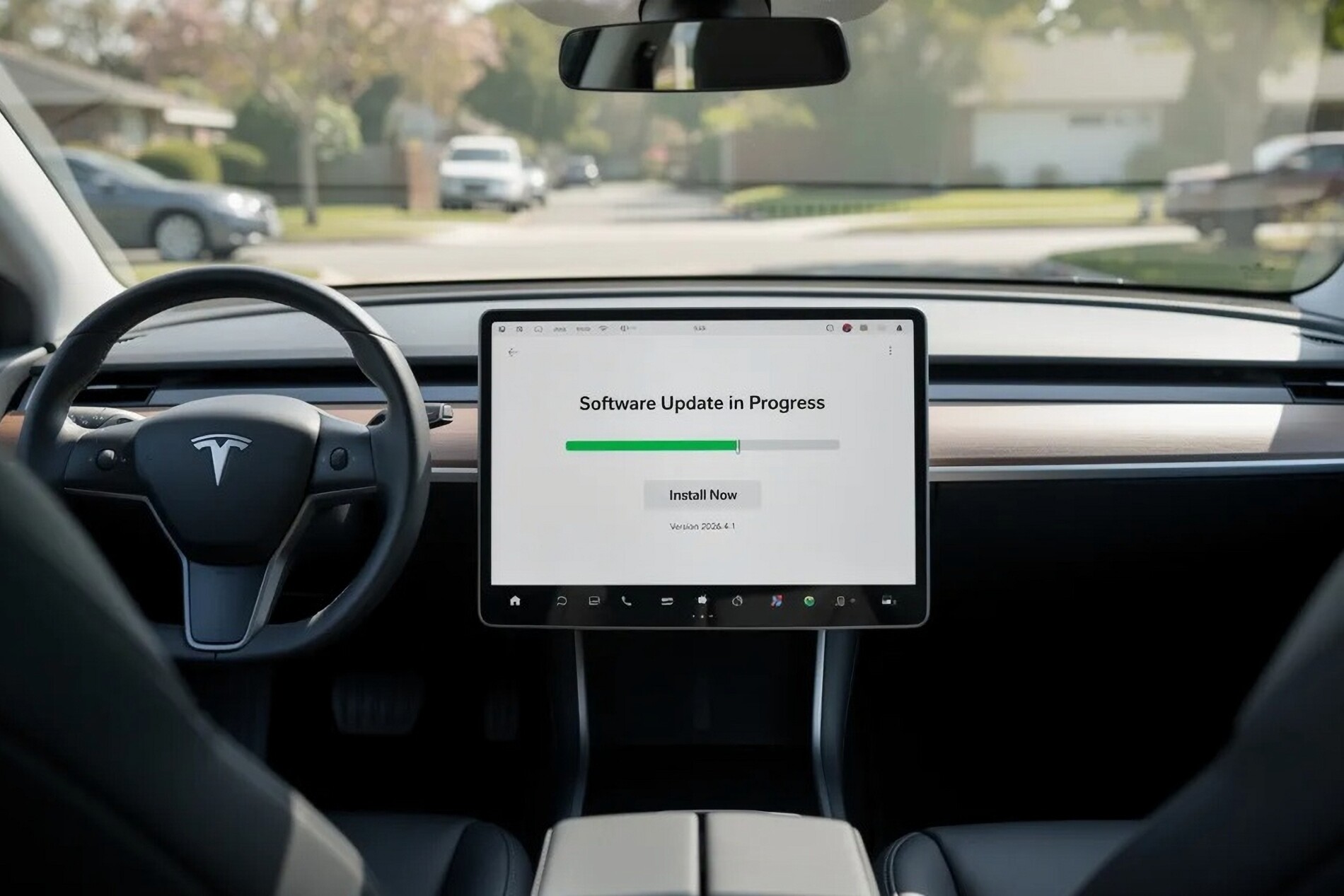
Once the vehicle says it is ready, select Install, Update Now, or the equivalent option. You can normally schedule it for later if the timing is inconvenient.
After installation starts, do not try to drive the car or interrupt the process. Avoid opening doors, switching the ignition on and off, disconnecting the 12-volt battery, or forcing the infotainment system to restart unless the manufacturer’s instructions specifically tell you to do so.
Some vehicles temporarily disable remote start, digital keys, charging, or other functions. Hyundai and Kia specifically warn that some remote and digital-key functions may be unavailable during certain updates.
Don’t assume a progress bar that pauses for several minutes means the update failed. Software installation can spend significant time on one stage before moving again.
Check the Car After the Update
5. Confirm that the installation completed successfully
Wait for the car or official app to report that the update is complete before using the vehicle.
Then read the new release notes and look at the instrument panel for warnings. Check important settings before driving, especially:
- Driver-assistance and safety settings
- Drive modes and regenerative-braking preferences
- Charging schedules and limits on EVs
- Phone key or digital-key operation
- Cameras and parking systems
- Driver profiles and privacy settings
Software updates can occasionally reset preferences or change where controls are located or how they behave. BMW’s 2026 update documentation, for example, warns that some privacy settings may return to factory defaults after an upgrade.
If everything looks normal, make your first drive after a major update a normal, low-risk trip so you can become familiar with any changed controls or behavior.
If the OTA Update Fails
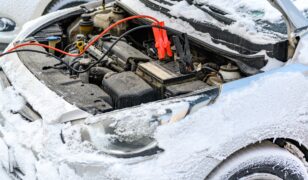
Do not disconnect the 12-volt battery or start experimenting with unofficial reset procedures while an installation is still running.
If the vehicle reports that the update failed, follow the troubleshooting instructions in the owner’s manual, official app, or manufacturer’s support page. A brand may provide a specific restart procedure, but don’t assume it will work on another manufacturer’s vehicle.
If the update remains stuck, repeatedly fails, leaves the vehicle unusable, or produces a warning involving steering, brakes, propulsion, or another safety-critical system, contact the manufacturer’s service or roadside-assistance department. Do not drive a vehicle that displays a warning telling you it is unsafe to drive.
Check Whether the Update Is a Recall Fix
Some safety recalls can now be repaired entirely through an OTA software update, while recalls involving physical parts still require dealer service.
In the United States, enter your VIN into NHTSA’s recall lookup to check for unrepaired safety recalls. Drivers outside the U.S. should use their country’s official recall database or the vehicle manufacturer’s recall checker.
The key rule is simple: Use only the official update, prepare the vehicle properly, start the installation when you can leave the car parked, and do not interrupt it once it begins.