How to Reset Your Car Infotainment System
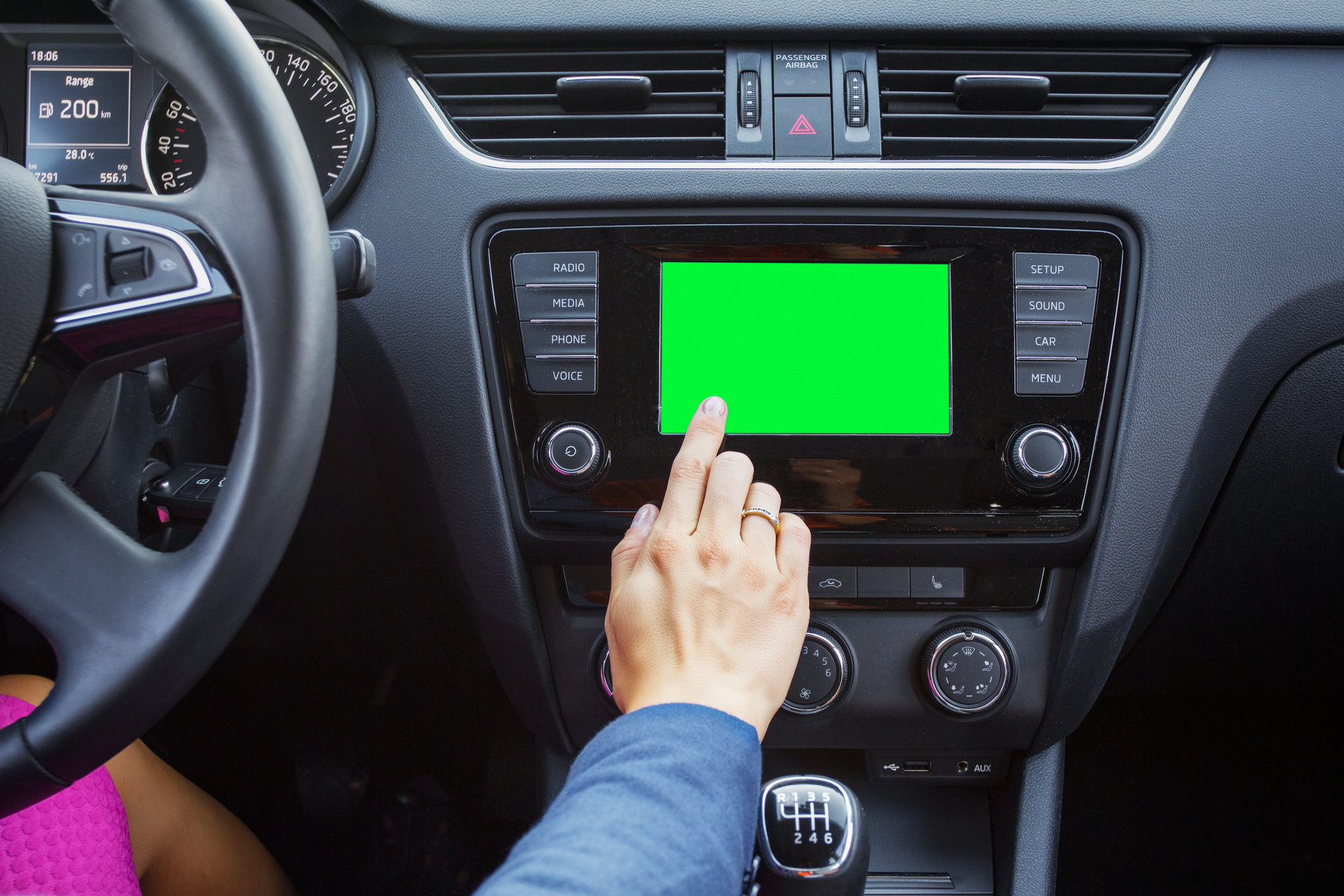
Is your car’s infotainment screen frozen, blank, or acting up?
Your car’s infotainment system is a computer. It runs an operating system, stores data, processes inputs, and connects to your phone. Like any computer, it builds up cache over time and can freeze after software updates or simply because it’s been running for too long.
A reset clears all of that. Here’s how to fix it yourself in minutes without driving to the dealership.
Three Types of Resets
- Soft Reset: It is a reboot and takes 30 seconds to a few minutes. Does not erase your radio presets, Bluetooth pairings, or saved settings.
- Hard Reset: Cuts power to the system entirely by disconnecting the car battery. Fixes a stuck display that a soft reset cannot fix. It may erase radio presets and Bluetooth pairings in some vehicles.
- Factory Reset: Restores everything to the factory default settings. All contacts, pairings, navigation favorites, and personal settings will be deleted. Use this as a last resort or right before you sell the car.
Before You Do Anything
Write down your radio station presets, Bluetooth device names, and any custom settings you care about. You may need to set them up again after a hard or factory reset.
Try This First (Works on Almost Every Car)
Turn the car completely off. Open the driver’s door and close it. Wait 5 minutes, then restart the car. It forces the car’s electronic modules to fully power down rather than go into sleep mode. A large number of infotainment system glitches die here; if it does not fix the issue for you, move to the brand-specific steps below.
Brand-by-Brand Infotainment System Reset Guide
Chevrolet, GMC, Buick, and Cadillac
GM has released several different infotainment systems over the years. The reset method depends on which one your car has.
- GM Infotainment with Built-In Google (2022 and newer trucks and SUVs, Cadillac Lyriq, and 2023 and newer Chevy Colorado and GMC Canyon): Put the car in ‘P’. Press and hold the End Call (phone hangup) button on the steering wheel for 10 seconds. The screen will go dark, reset, and restart.
- GM Infotainment without Built-In Google (2019 to 2023 models): Turn the car off, then back on. Simple!
- GM Infotainment 2017 to 2019: Press the OnStar call button, then immediately hang up. The system will reboot on its own.
- MyLink and IntelliLink Systems (2014 to 2016): Press and hold the Home and Fast Forward buttons simultaneously until the screen goes dark.
- Hidden Reset Button (on some Cadillac, Chevy, Buick, and GMC models): Find a small, unmarked reset hole in or near the center console button cluster, usually close to the volume knob. Insert the tip of a paper clip into the hole, and you will find a button inside. Click and hold it firmly. Wait for the system to restart, then pull back the clip.
- Factory Reset: Go to Settings > Vehicle > Reset, OR Settings > System > Reset Options > Factory Data Reset. The default PIN is usually 0000 or 00. Confirm, then wait 5 to 10 minutes for the process to finish.
Ford
Ford calls its infotainment platform SYNC. Models from 2016 to 2020 have SYNC 3, and models from 2021 and newer have SYNC 4 or SYNC 4A.
- SYNC 3: Press and hold the Volume Down button and the Voice Recognition button on the steering wheel at the same time until the screen goes black and the Ford logo reappears.
- SYNC 4 and SYNC 4A: Press and hold the Volume Down button and the Seek Down (Previous Track) button together for about 10 seconds. The screen will go black and reboot. You may hear a chime when it starts back up.
- Factory Reset (Master Reset): Go to SYNC Settings > General > Master Reset. Select Yes when prompted to confirm. This clears all personal data, Bluetooth pairings, and saved preferences.
Toyota
Toyota has used three infotainment platforms: Entune (2012 to 2020), Audio Multimedia (2021 and newer), and the Toyota Interface system found in 2023 and newer models. The reset process is similar across all three, though there are some model-specific button variations.
- General Soft Reset (works on most Toyota models): Press and hold the audio power or volume knob until the screen turns off. Wait for the system to reset and restart.
- Toyota Tacoma (2016 to 2023): Press and hold the Power and Volume Down buttons together until the system resets.
- Toyota Highlander (2020 to 2023): Press and hold the Home and Volume Down buttons together until the system resets.
- Toyota Prius (2016 to 2022): Press and hold the Audio button and the Volume Down button together for 15 seconds.
- Factory Reset: Go to Settings > General > Delete Personal Data, OR Settings > System > Restore Factory Defaults, depending on the model year.
Honda
- Button Hold Method: Turn the ignition to the On position without starting the engine. Press and hold the power button on the infotainment unit for 5 to 10 seconds. The system will reboot.
- Honda Models with a Reset Hole: Some Honda models have a small recessed reset button near the infotainment unit. Press it with the tip of a paper clip. Check your owner’s manual for the exact location on your model.
- Factory Reset: Go to Settings > System > Restore Factory Settings and confirm. This erases all Bluetooth pairings and stored data.
Tesla (All Models: Model 3, Y, S, X)
- Soft Reset: Put the car in ‘P.’ Press and hold both scroll wheel buttons on the steering wheel simultaneously. Hold them until the screen goes black and the Tesla “T” logo appears. This keeps all your saved settings and data intact.
- Full Power Cycle (for persistent problems): Go to Controls > Safety > Power Off. Wait 2 to 5 minutes without touching anything inside the car. Then, press the brake pedal to wake the car again.
- Hard Reset (when the screen is unresponsive): Put the car in ‘P.’ Press and hold the brake pedal and both scroll wheels at the same time. On the Model S and Model X, also press both buttons above the scroll wheels simultaneously. Hold everything together until the Tesla logo appears.
- Factory Reset: Go to Controls > Service > Factory Reset. This removes all user data from the vehicle. Do this before selling or in case of persistent software failure.
Hyundai and Kia
- Hidden Reset Button Method: Find the small unmarked reset hole near the volume knob or near the infotainment button cluster in the center console. Insert a paper clip into it. Press it firmly, wait for the system to restart, which usually takes a minute or two.
- Button Hold Method: If there is no reset hole, press and hold the audio system power button until the screen restarts.
- Factory Reset: Go to Settings > General > System > Restore to Factory Settings and confirm.
Nissan (NissanConnect)
- Button Hold Method: Press and hold the power or volume knob on the infotainment unit until the screen goes dark. Wait for the system to reset and restart on its own.
- Factory Reset: Go to Settings > System > Factory Reset. Confirm when prompted. This erases all Bluetooth pairings, navigation favorites, and personal settings.
Chrysler, Dodge, Jeep, and Ram (Uconnect)
- Uconnect with 8.4-inch Screen (2013 to 2019): Put the car in accessory mode by pressing the ignition button without pressing the brake pedal. This turns on the electronics without starting the engine. Press and hold the temperature up button (the red button) and the temperature down button (the blue button) at the same time until a menu appears. Find “Reset Radio” on the menu and follow the instructions.
- Uconnect 5 (2020 and newer): Press and hold the volume knob for more than 20 seconds. The screen will restart on its own.
- Factory Reset: Navigate to Settings > System Information > Reset (exact wording varies by model year). Confirm the reset.
How to Do a Hard Reset by Disconnecting the Battery
Use this when soft resets have failed, the screen is completely black and unresponsive, or the system is stuck in a boot loop.
- Turn the car off and make sure it is fully powered down.
- Open the hood and locate the battery.
- Use a wrench to disconnect the negative battery terminal, which is the black cable marked with a minus(-) sign.
- Wait 10 to 15 minutes.
- Reconnect the negative terminal and tighten it securely.
- Close the hood.
- Start the car and let the infotainment system initialize fully before testing anything.
What may happen afterward: Some radio presets and Bluetooth pairings may be erased. On older vehicles with anti-theft radio codes, the head unit may lock and require a code to unlock. Before disconnecting the battery on an older car, check your owner’s manual or contact your dealer to get that code in advance.
Final Remarks
Always keep your system’s software version up to date. Install updates over a strong Wi-Fi connection while the car is parked and On. An interrupted update installation is one of the most common causes of a bricked infotainment screen. Also, clear out paired Bluetooth devices you no longer use. Soft reset the infotainment system once a month, even when everything is working fine, to clear the cache.