How to Set Up Apple CarPlay Correctly
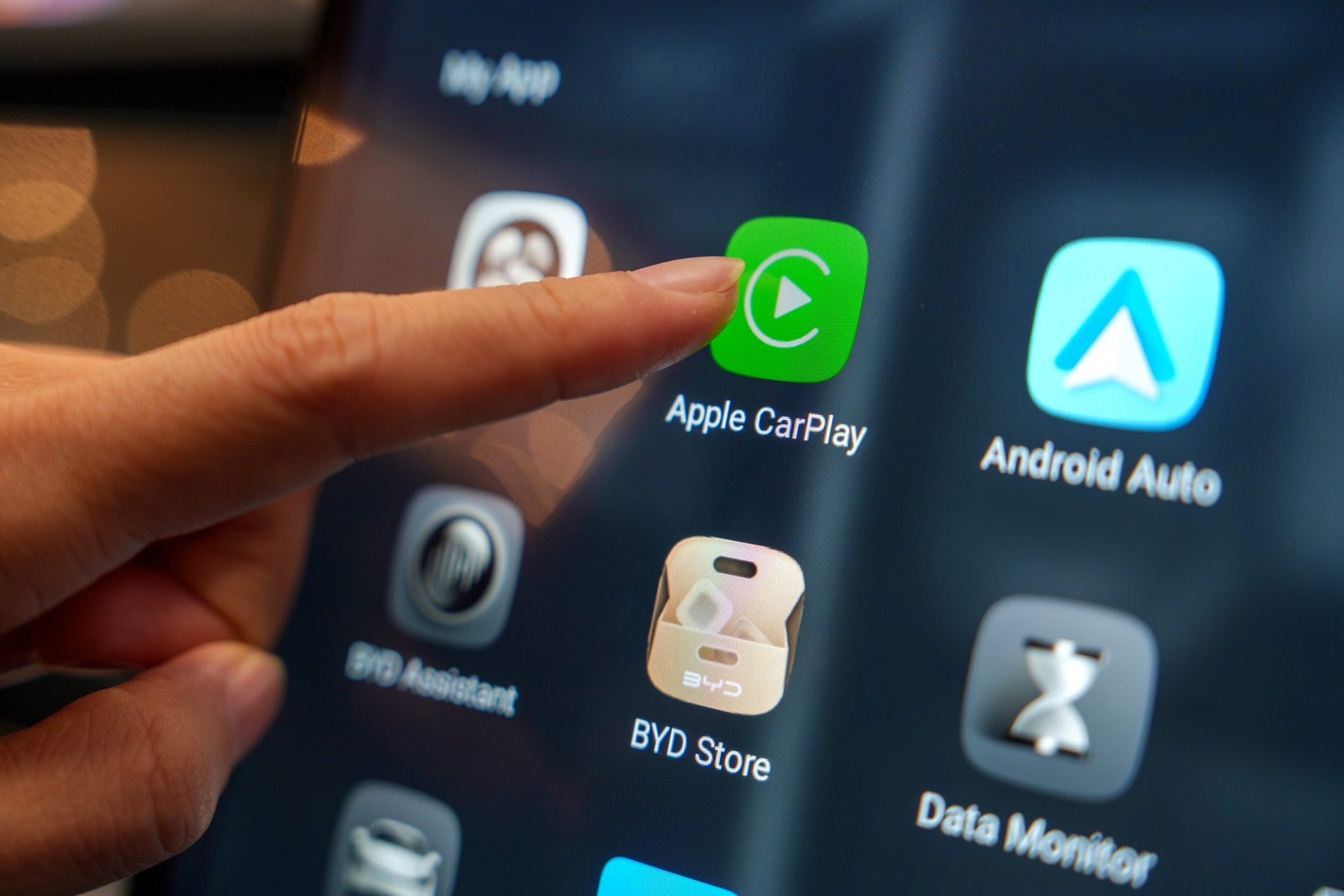
Apple CarPlay can turn any compatible car into a safer, smarter driving companion in minutes.
Apple CarPlay puts key iPhone features, including Maps, Phone, Messages, Music, and supported third-party apps, on your car’s built-in display. You control it through the screen, your car’s physical controls, or Siri so that you can keep your eyes on the road.
This guide will teach you how to check compatibility, connect Apple CarPlay for the first time, and fix the most common setup problems.
What You Need Before Setting Up Apple CarPlay
Confirm a few basics before you start. Skipping this step is the most common reason setup fails.
1. A CarPlay-compatible car.
Not every vehicle supports Apple CarPlay, and not every vehicle that supports it offers both wired and wireless connections. Check Apple’s official list of CarPlay-compatible vehicles, your owner’s manual, or ask your dealer.
2. A compatible iPhone.
Current iPhone models all support both wired and wireless CarPlay. If you are using an older iPhone, wired CarPlay is more likely to work.
3. The latest software on both sides.
Update your iPhone to the latest version of iOS, and check whether your car’s infotainment system has an available software update.
4. Siri turned on.
Apple’s own setup instructions begin with turning on Siri before you connect. Go to Settings, then Siri & Search, and make sure Siri is enabled.
5. Use a data-transfer-capable cable.
Not all USB cables move data. Some only charge. Use an Apple-certified cable, sometimes labeled MFi for “Made for iPhone,” ideally the one that came with your iPhone.
How to Set Up Wired Apple CarPlay
Wired Apple CarPlay is the most reliable connection method, and it is required at least once for cars that also support wireless CarPlay.
- Start your car and make sure Siri is on.
- Find the correct USB port. Look for a port labeled with a CarPlay icon or a smartphone icon. Some vehicles have several USB ports, and only one may support CarPlay.
- Connect your iPhone with an Apple-certified cable, using Lightning or USB-C depending on your iPhone model. If your iPhone has USB-C but your car’s built-in cable ends in Lightning, see the adapter note in the problems section below.
- Unlock your iPhone if it is locked.
- Accept the Apple CarPlay prompt on your iPhone, your car’s display, or both, depending on your vehicle.
- Wait for the Apple CarPlay Home screen to appear on your car’s display.
How to Set Up Wireless Apple CarPlay
If your car supports both wired and wireless CarPlay, plug your iPhone in with a USB cable the first time. After you connect, your iPhone will show an alert offering to connect wirelessly on future drives. Accept it, and your car will remember the pairing for future use.
If Your Car Supports Only Wireless Apple CarPlay
- Press and hold the voice command button on your steering wheel, or put your car’s stereo into wireless or Bluetooth pairing mode.
- On your iPhone, make sure Wi-Fi is turned on.
- Tap the Info button next to your car’s CarPlay network, and confirm that Auto-Join is turned on. Auto-Join lets your iPhone reconnect automatically each time, instead of asking you to connect manually.
- Go to Settings, then General, then CarPlay, and select your car from the list of available cars.
- Confirm the connection on your car’s display if prompted.
Wireless Apple CarPlay depends on Bluetooth and Wi-Fi working together. Keep both turned on. Turning off one to save battery will disconnect CarPlay.
How to Make Sure CarPlay Is Allowed on Your iPhone
If your iPhone does not detect Apple CarPlay even though your car and cable are working, a restriction may be blocking it.
Go to Settings, then Screen Time, then Content & Privacy Restrictions. If Content & Privacy Restrictions is turned on, tap Allowed Apps and make sure CarPlay is enabled. This setting is off by default for most people, but you can turn it on through Screen Time, Family Sharing, or a device management profile.
If your iPhone is managed by an employer or school account, that organization’s policy may restrict Apple CarPlay instead of your own settings. Contact your IT administrator if that applies to you.
What to Do If Apple CarPlay Is Not Working
If Apple CarPlay doesn’t connect as expected, work through these steps in order. Check CarPlay after each one before moving to the next.
- Check your connection. For a wired setup, try a different cable and a different USB port. For a wireless setup, confirm Bluetooth is on, then confirm Wi-Fi is on, and Auto-Join is enabled for your car’s network.
- Look for the Apple CarPlay logo on your car’s display and select it manually, since it does not always launch automatically.
- Restart your iPhone and your car.
- Make sure Siri is turned on.
- Check Screen Time and Content & Privacy Restrictions, as described above.
- Go to Settings, then General, then CarPlay, tap your car, then tap Forget This Car. Set up Apple CarPlay again from the beginning.
- Check for a stereo firmware update from your car manufacturer.
Common Apple CarPlay Setup Problems and Fixes
1. CarPlay never appears, or your iPhone charges without CarPlay launching.
This is almost always a cable or port problem. Many cables can power your phone but cannot carry the data CarPlay needs. Confirm you are using an Apple-certified data cable and the port labeled for CarPlay, not a charging-only port.
2. Wireless CarPlay disconnects while you are driving.
This usually points to Bluetooth or Wi-Fi being turned off, either on purpose or through a battery-saving setting. Keep both turned on for the entire drive.
3. Your car connects to the wrong phone, or asks you to choose between devices.
This happens when multiple phones have been paired with the same car. Rename your iPhone in Settings > General > About > Name so it is easy to tell apart, then reconnect.
4. CarPlay stopped working after an iOS update.
Try the Forget This Car and reconnect steps above, and check for a stereo firmware update. If you are running a beta version of iOS, CarPlay issues are more common on beta software and are usually fixed in a later Apple update.
Final Checklist
- Confirmed your car supports Apple CarPlay, and whether it offers wired, wireless, or both.
- Updated your iPhone to the latest version of iOS.
- Checked for a software update on your car’s infotainment system.
- Turned on Siri under Settings, then Siri & Search.
- Connected with an Apple-certified cable, or turned on both Bluetooth and Wi-Fi for a wireless connection.
- Accepted the CarPlay prompt on your iPhone and your car’s display.
- Checked Screen Time, then Content & Privacy Restrictions, to confirm CarPlay is allowed.
- Customized your CarPlay apps under Settings, then General, then CarPlay.
Once these steps are complete, CarPlay should connect automatically every time you start your car.